

👥 Administrators
Tab Administrators is the place where is represented all information about each member of the Clients’ admin team. Here is possible to add a new member of the admin team as well.➕ Adding a new administrator
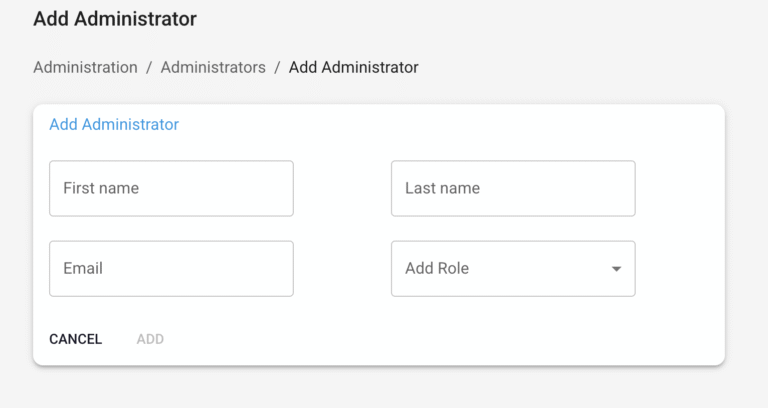
To invite a new member of the admin team please follow the next steps:- Press [+ Add Administrator]
- Fill in the form with appropriate data: first and last name, email, and role
- Press [Add]
🧩 Roles
A role refers to a predefined set of permissions and responsibilities assigned to a user or a group of users. Roles are used to define the level of access and the specific actions that users with that role can perform within the admin panel. Currently, within the system, there are three roles available:- Supervisors – see all functionality, can interact with all functions.
-
Compliance – see all functionality.
- Restricted by back-end:
- Cannot add admins with role compliance/supervisors
- Cannot edit role (any role)
- Cannot delete admin with any role
- Cannot enable/disable admin with any role
- Restricted by back-end:
-
Admins – don’t see the following elements:
- “Requests” tab
- “Configurations” tab in view Individual/Corporate
- Info about AML in view transaction
- “Return” button on “transaction details” page of transaction with aml failed status
- Create transaction (for mock provider)
- Get requests
- Get transactions in pending AML, failed AML, and manual review
- Return the AML failed transactions
- Approve/reject requests
- Approve/reject manual review
- Inside transaction details, get info about AML and manual review
- Get account configurations on the user’s level
- Add admins with role compliance/supervisor
- Cannot edit role
- Cannot delete admin with any role
- Cannot enable/disable admin with any role
📋 Administrators Table
The table on the tab Administrators contains the following information about each admin:- First name
- Last name
- Role(s)
- Date of the last update
- Enable/Disable – once the Admin’s account is disabled then the user is not able to log in to the White Label Admin panel. After a new Admin is created – he/she is automatically enabled.
- Edit – the following info can be edited: first name, last name, and role.
- Delete

📑 Contracts
The contract is a set of configurations that should be applied to the end user of the White Label Client application and determine a set of rules within the system applied to this user. At this moment, these rules relate to:- Fees that should be paid for some actions within the system
- Limits of bank accounts allowed to open
- Id
- User type – individual or corporate
- Contract title
- Creation date and time
- Status: active or archived
- Details
- Short description of contract characteristics or peculiarities if applicable
- Fee per each available payment method
- Limits of bank account that is possible to create per one user
📝 Configuring contracts
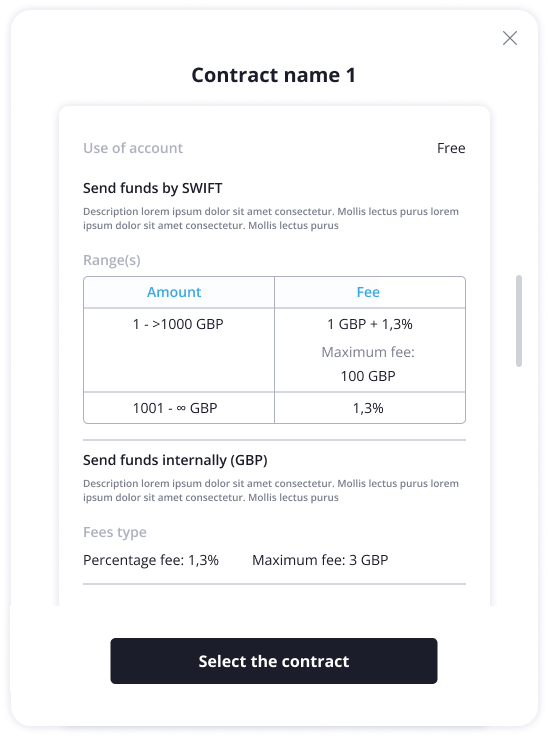
To configure the contract the Client has to fill in the following information:- Contract name
- User type (individual/corporate)
- Account limits: maximum number of accounts possible to create in each of available currencies
- Fees per different services
- Service: e.g. Internal transfer, SWIFT, SEPA, SEPA Instant, UK Faster Payment, Crypto Exchange
- Currency: EUR, USD, GBP, PLN, BTC, ETH, USDT, USDC, TRX
- Amount range(s): maximum 3 ranges “from-to” per each service
- Fee types:
- Min between flat and percentage
- Max between flat and percentage
- Sum of flat and percentage
- Flat
- Percentage
💵 Revenue accounts
All the fees that are collected from transactions in the White Label system should be transferred to a separate account – a revenue account. There should be separate revenue accounts for each currency and each Provider. Before end users onboarding it is required for the Client to:- Sign up for the Client part of the White Label solution
- Pass KYC/KYB (if corporate)
- Open a bank account in each available currency
- Provide the development team with the account details
📬 Requests (Manual mode)
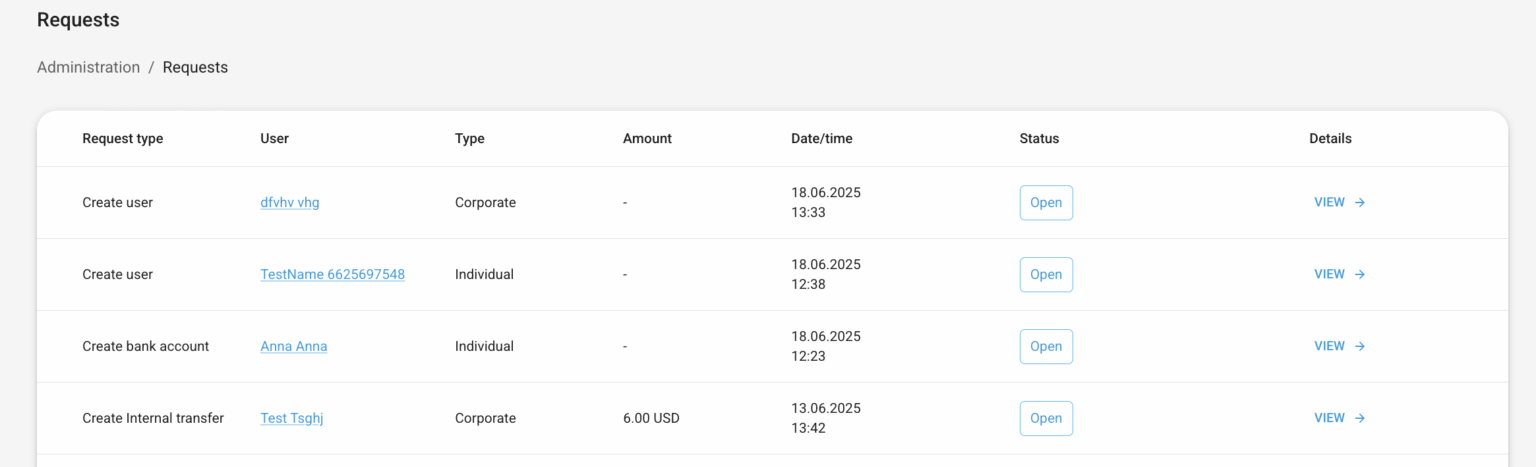
On this page, you will receive all requests from users that have a Mock provider (BaaS provider that works in manual mode). Manual mode is designed to enable launching the setup as quickly as possible, without needing to wait for API integration with the banking provider to be completed. This feature allows you to start your business without API integration, managing account issuing and transfers manually via Finhost and the banking provider back offices while integration is in progress. Once the API integration is complete, we ensure a smooth transition from manual operations to automated processes for account issuing and payment processing. Currently, we have such types of requests:- Create user – to create user, you need to provide the external ID
- Create bank account – to create a bank account you need to provide:
- IBAN
- BIC/SWIFT
- External account ID
- Create a transfer – it could be SEPA, SEPA Instant, Internal, UK Faster payment, or Swift.
With this request, you will see the window with details of transaction and only approve or reject the transaction. - Create Fee transfer – this request is created automatically after you approve the request for creation of a transfer.
🧩 1. Create Account
Here you can see three schemas that illustrate the sequence of actions when creating an account and processing transactions in manual mode.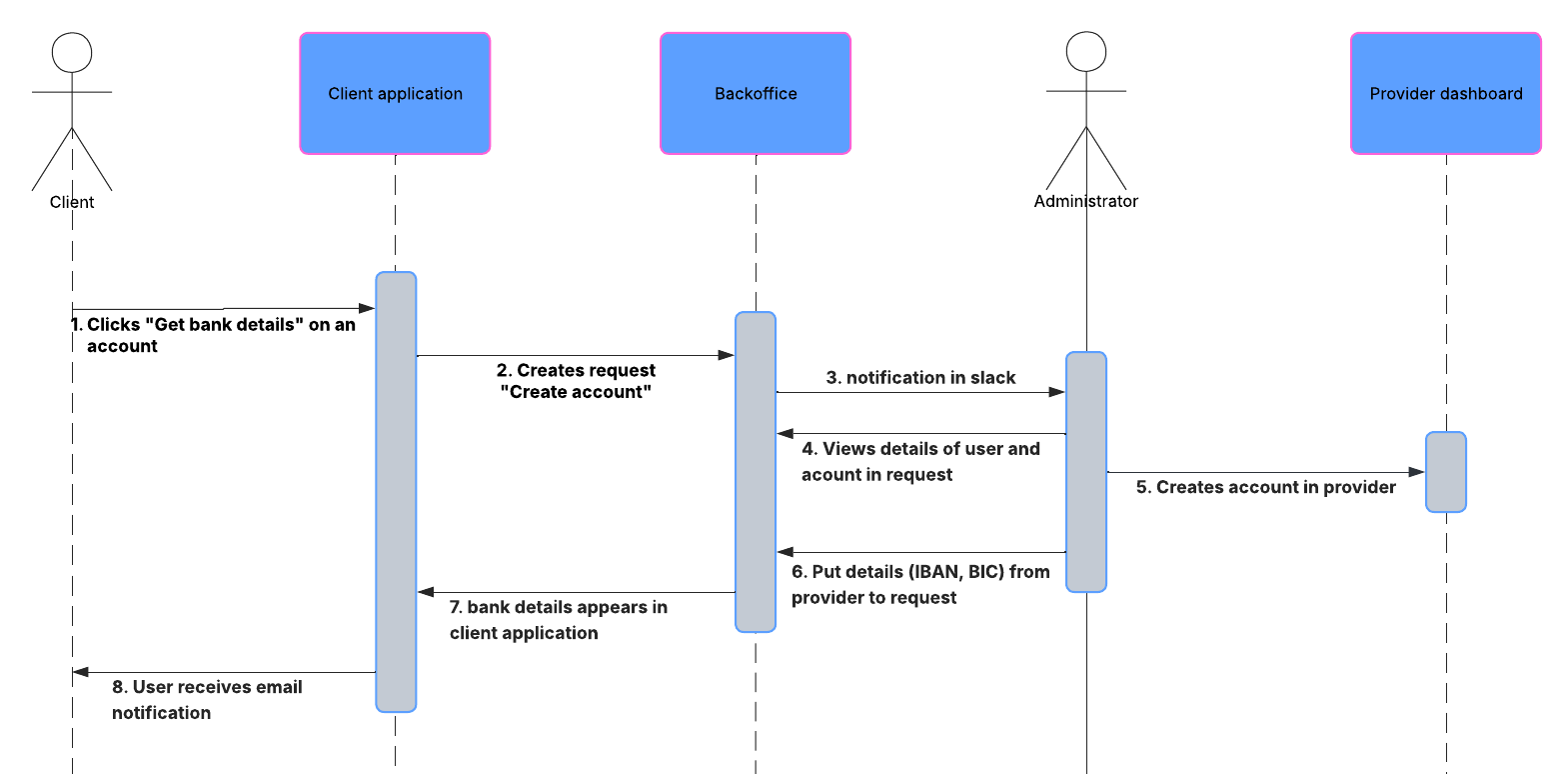
Step 1 — User Action
The user clicks “Get Bank Details” on their account.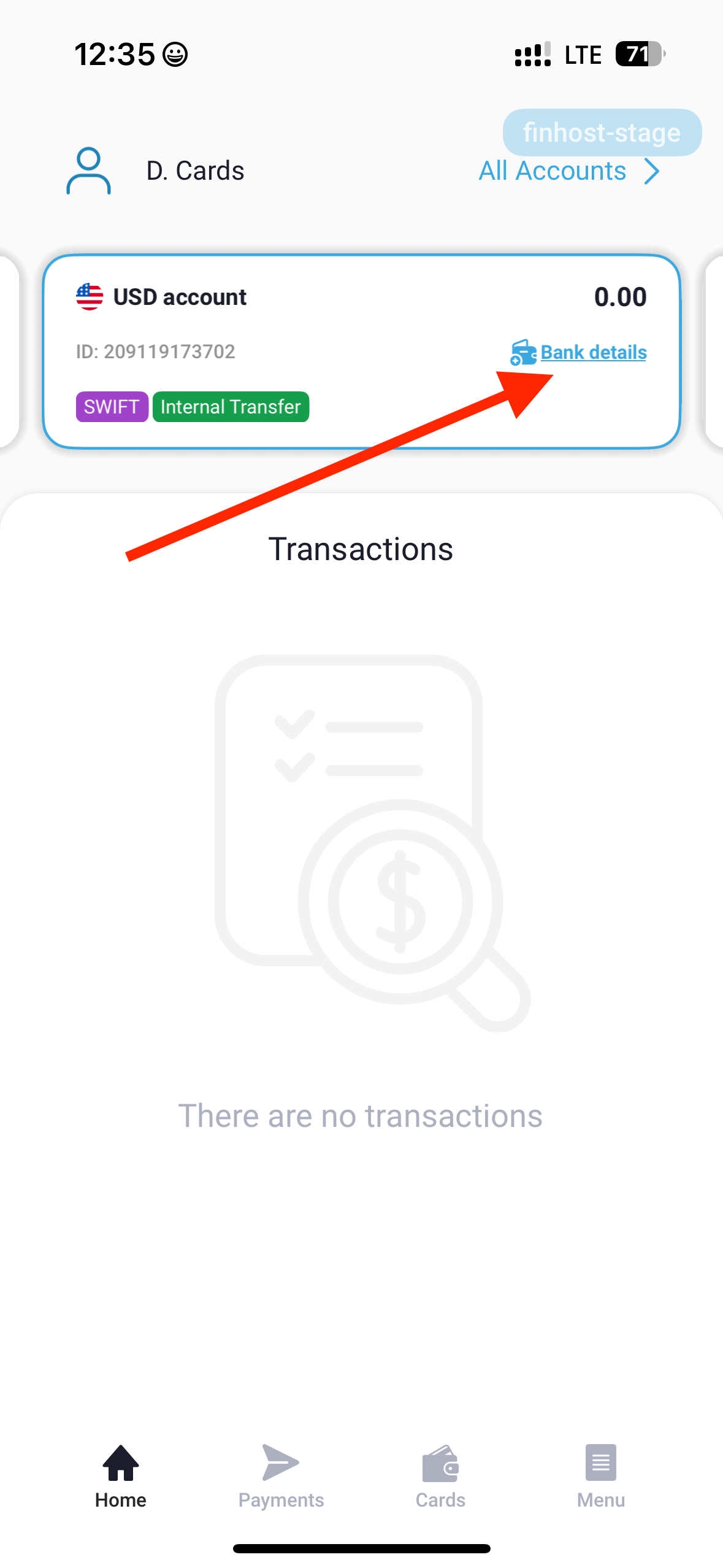
Step 2 - Slack Notification
Once the user initiates account creation, a Slack notification is automatically sent to the internal operations channel.These notifications are internal and allow the team to track newly initiated account requests in real time.
They are not visible to end users.
They are not visible to end users.
Step 3 — Provider Verification
After the first account creation request, the system will prompt the creation of a user.This information must be submitted to the banking provider.
Once the end user is accepted by the provider, you can proceed with user and account creation in the provider’s portal. 🧾 Creating User
- Submit user information from Finhost to the provider’s onboarding system.
- Wait for the provider to approve and return the User ID.
- Copy the User ID and insert it into the Finhost Backoffice field External User ID.

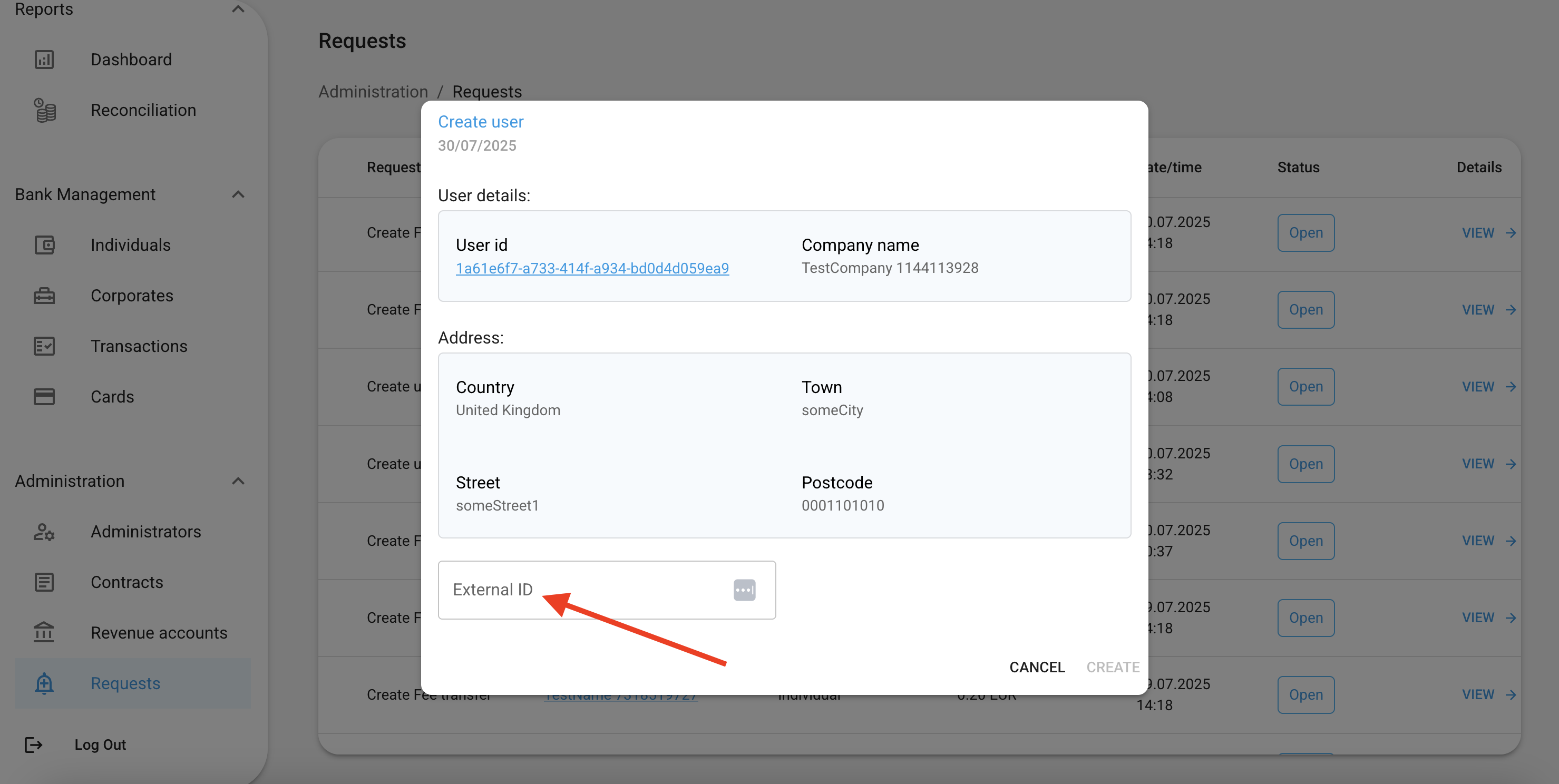
Step 4 — Admin Account Creation
Once the user is created and verified on the provider’s side, the Admin can create an account for that user in the Finhost Backoffice.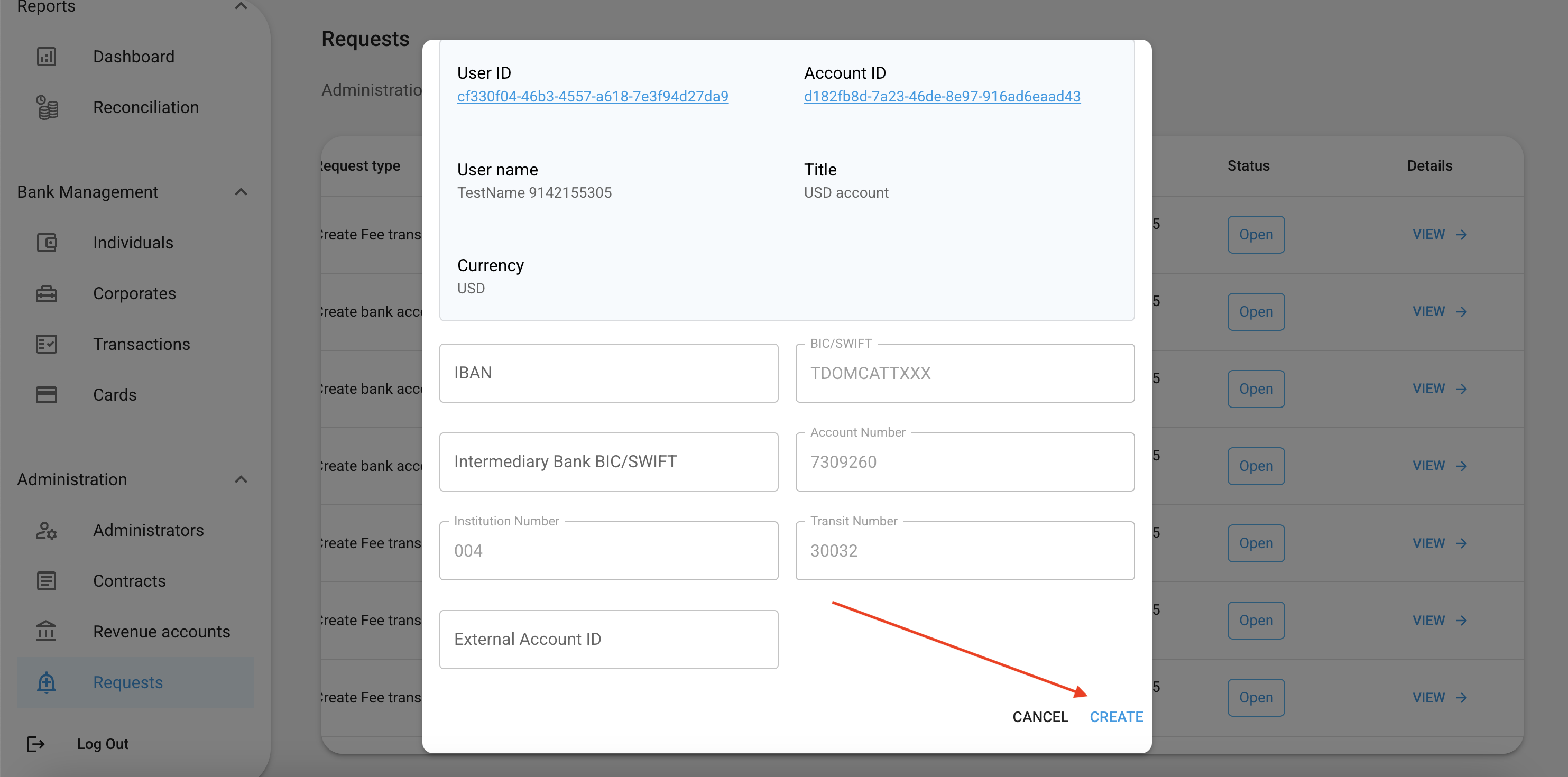
💸 2. Create Outgoing Transaction
General Schema
Step 1 — User Initiates Payment
The user initiates a payment request through their account interface.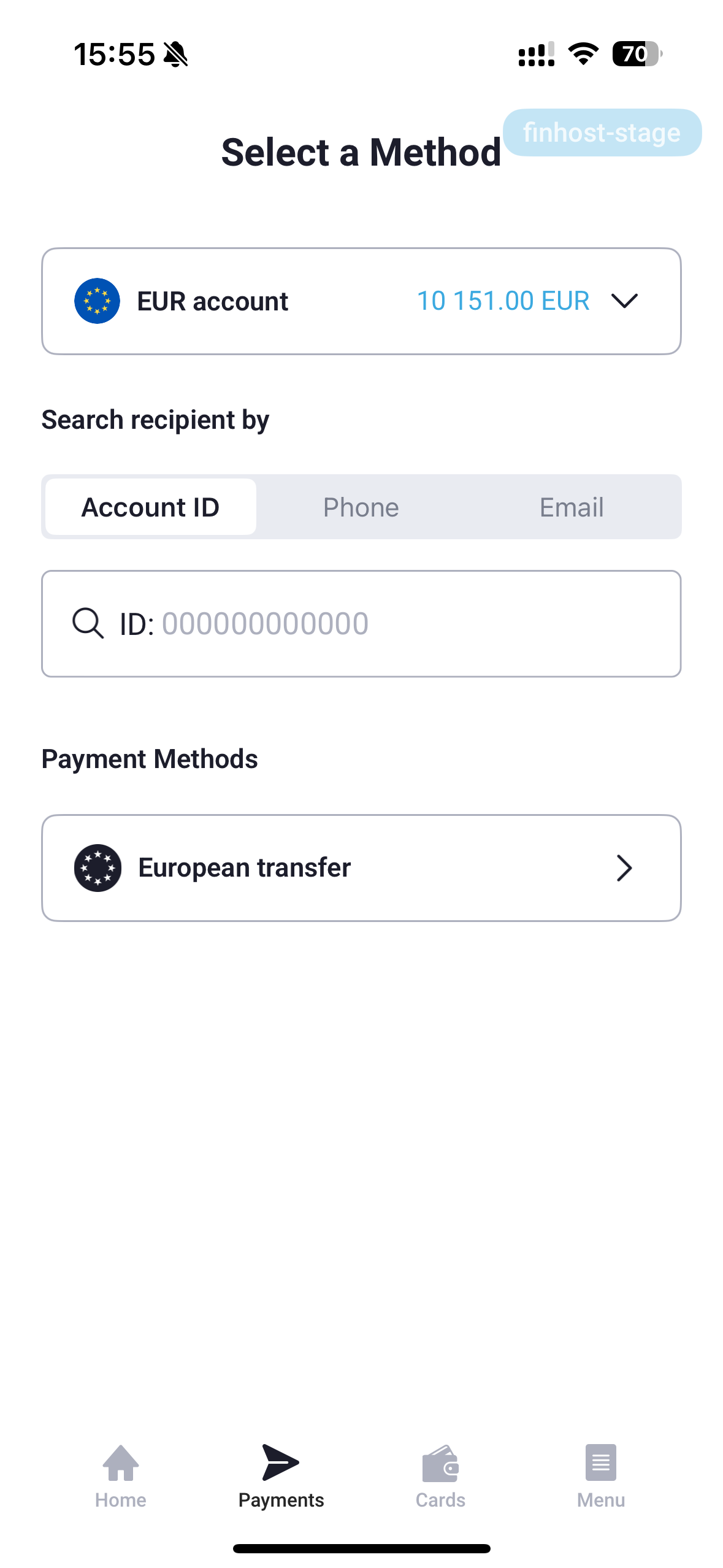
Step 2 - Slack Notification
Once the user initiates outgoing payment, a Slack notification is automatically sent to the internal operations channel.These notifications are internal and allow the team to track newly initiated account requests in real time.
They are not visible to end users.
They are not visible to end users.
Step 3 — Admin Initiates Payment on Provider Side
Once the user submits a payment request, an Admin must manually initiate this transaction in the banking provider’s portal.Step 4 — Approve or Reject Transaction in Finhost Backoffice
After receiving a response from the banking provider, the Admin should review the transaction in Finhost Backoffice.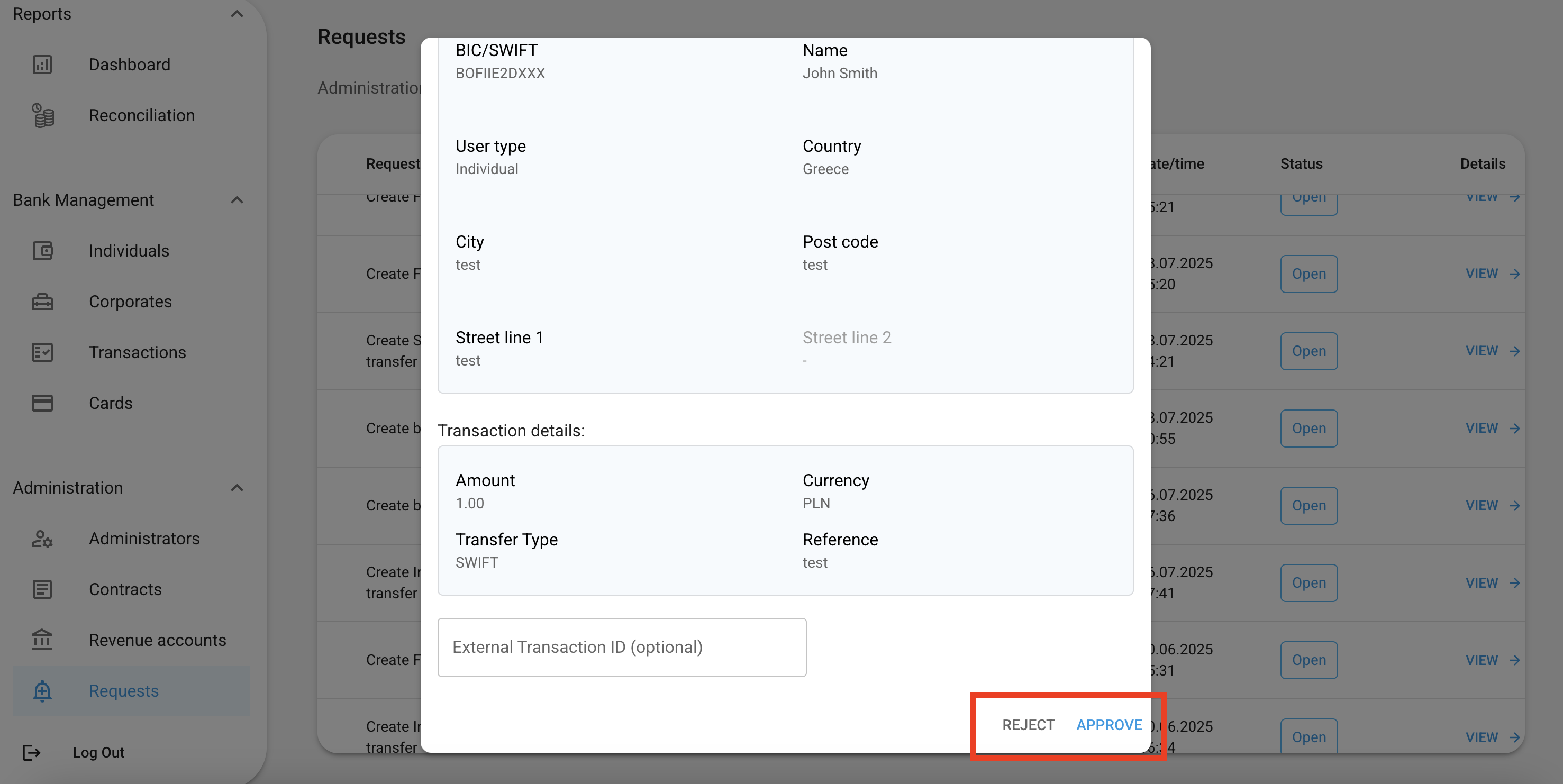
- Approve the transaction in Finhost Backoffice.
- Insert the External Transaction ID received from the provider.
- Use the Reject button in Finhost Backoffice.
- You can specify a rejection reason, if available from the provider.
This reason will not be visible to the end user, but it will remain stored internally for your operational records.
Step 5 — End User Notification and Balance Update
Once the transaction is approved and the external ID is recorded:- The end user receives an email notification confirming the payment.
- The account balance is automatically updated.
- The transaction status changes to Completed.
Step 6 — Fee Transaction Approval
Since this is manual mode, once the main payment is approved, a fee transaction will be created automatically.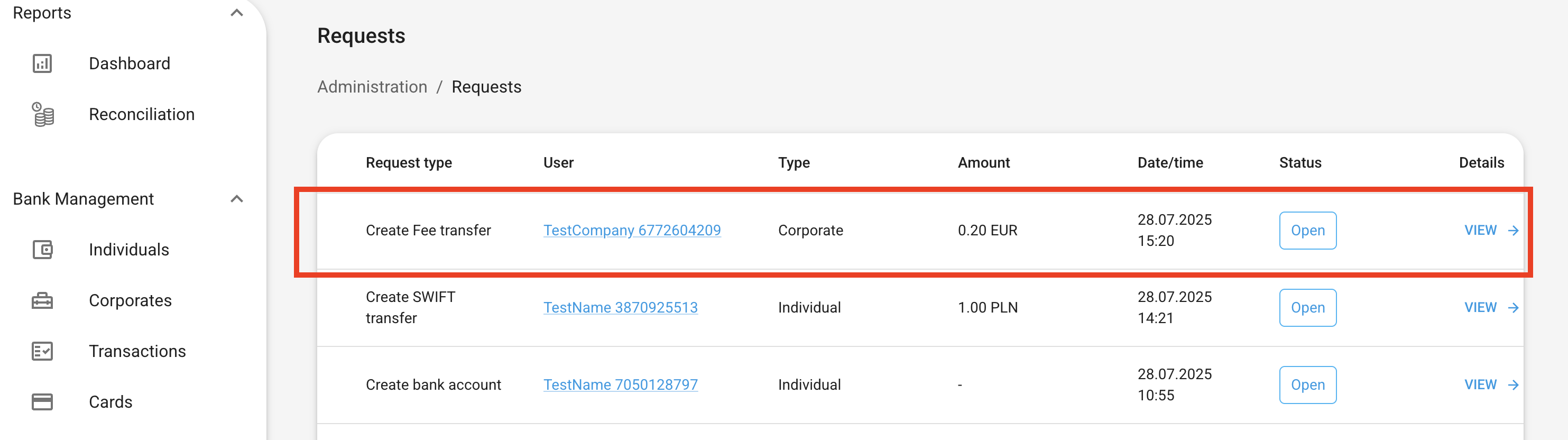
- Locate the automatically generated fee transaction in Finhost Backoffice.
- Review and approve it to finalize the payment flow.
💰 3. Create Incoming Transaction
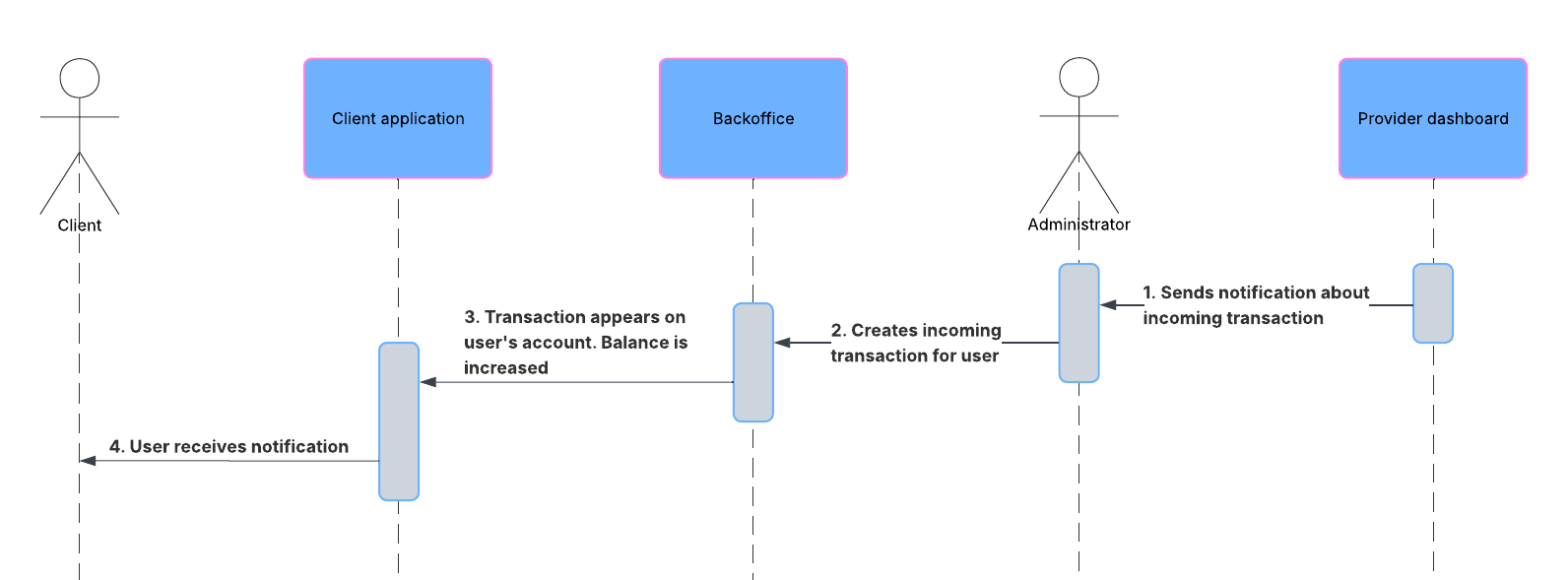
Step 1 — Monitor Provider Dashboard
The first task for the Admin is to regularly monitor the banking provider’s admin dashboard to identify new incoming deposits. We highly recommend enabling email or system notifications (if supported by the provider) to ensure that deposits are credited to end users’ accounts as soon as possible.Step 2 — Log the Deposit in Finhost Backoffice
Once a deposit is visible in the provider’s system, it needs to be logged manually in Finhost Backoffice.
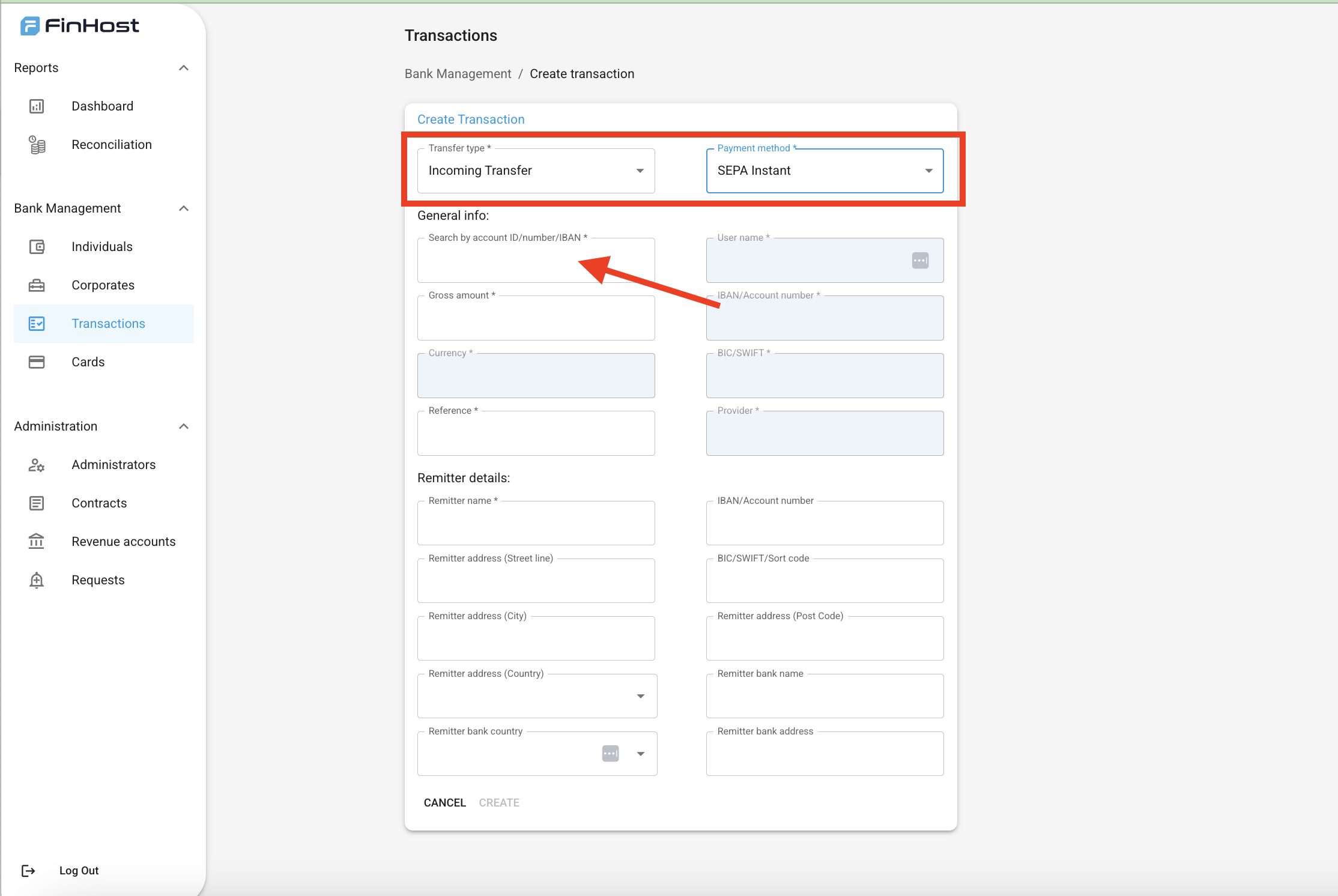
- Open the Create Transaction page.
- Select Incoming Payment as the transaction type.
- Choose the appropriate payment method.
- Search for the target account using one of the following options:
- Internal Account ID
- Account Number
- IBAN
If the user deposits to a pooled account and is identified via the payment reference,
use the Reference ID, which corresponds to the Internal Account ID in our system.
use the Reference ID, which corresponds to the Internal Account ID in our system.
If the user deposits to a dedicated banking account, you can use the Account Number or IBAN for convenience.
Step 3 — Complete Transaction Details
Fill in all required fields according to the sender’s information provided by the banking provider.Ensure that the sender’s name, payment reference, and amount match the details shown in the provider’s dashboard.
Step 4 — Confirm Deposit
Once the transaction is created and confirmed:- The user’s balance will be automatically updated.
- An email notification will be sent to the end user confirming the deposit.
- The transaction status will change to Completed in Finhost Backoffice.
💠 Crypto Module Administration Guide
1. Introduction
The Crypto Module connects fiat and crypto operations through two main providers:- Fireblocks (FB) — manages crypto wallets, generates deposit addresses, and processes incoming and outgoing crypto payments.
- Kraken (KR) — handles all crypto–fiat conversions using market orders for real-time liquidity.
The flow relies on centralized liquidity and does not create separate accounts for each client on the providers’ sides —
all client balances are handled and reflected within the Finhost Core Banking Ledger, which tracks and synchronizes virtual balances for end-users.
2. How Money Flows Work
🔄 A. Fiat → Crypto Exchange and Withdrawal
Example: Convert EUR to BTC and send out. Steps:-
The user creates a EUR account (Acc A) with SEPA and Crypto Exchange capability (supported by the Fiat Provider).
→ An account is created on the Fiat Provider side. -
The user creates a BTC account (Acc B) (supported by Fireblocks and Kraken).
→ No individual wallet is created on the provider’s side; Finhost uses Fireblocks and Kraken master accounts for all clients. -
The user receives EUR via SEPA to Acc A, reaching a balance of 100 EUR.
Funds are settled on the Fiat Provider account. -
When the user requests to exchange EUR → BTC:
- The conversion takes place on Kraken via a market order.
- Acc B (BTC) balance is updated to 0.0017 BTC within the Finhost Core Banking Ledger.
-
When the user withdraws BTC:
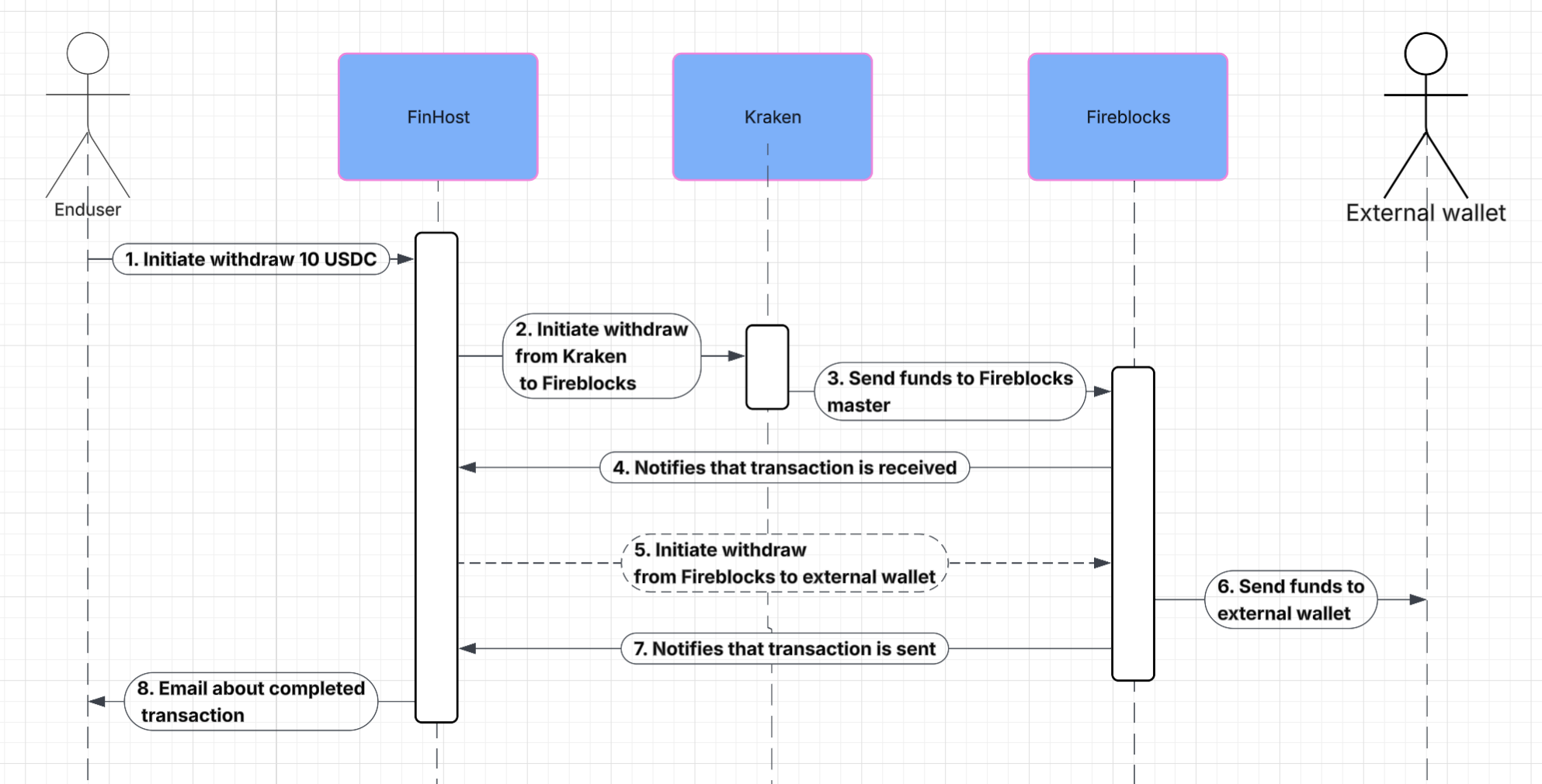
The transaction flow is Kraken → Fireblocks Master → External crypto address.
🔁 B. Crypto → Fiat Exchange and Withdrawal
Example: Convert BTC to EUR and withdraw via SEPA. Steps:-
The user creates a BTC account (Acc A) (supported by Fireblocks and Kraken).
→ A unique Fireblocks crypto address is generated for the user to receive and send crypto funds. -
The user creates a EUR account (Acc B) with SEPA and Exchange capability (supported by the Fiat Provider).
→ An account is created on the Fiat Provider side. -
The user deposits 0.0017 BTC to the crypto address.
- Fireblocks receives the transaction and transfers it to the Kraken Master Account for liquidity and trading availability.
-
When the user exchanges BTC → EUR:
- The conversion happens on Kraken using a market order.
- Acc B (EUR) balance updates to 100 EUR within the Finhost Core Banking Ledger.
-
The user withdraws EUR:
- The flow is Kraken → Fiat Provider → External recipient (SEPA Out).
3. Reconciliation & Liquidity Management
The Admin is responsible for maintaining sufficient liquidity on both Fiat and Crypto sides.These systems are independent — the Fiat Provider does not see Crypto Provider balances, and vice versa.
⚙️ Initial Setup Requirements
Before enabling crypto exchange for a currency, ensure liquidity is pre-deposited on both providers’ sides. Example:If you plan to enable EUR for exchange:
- Deposit liquidity in EUR on the Fiat Provider side.
- Deposit liquidity in EUR on the Kraken side.
📊 Reconciliation Reports
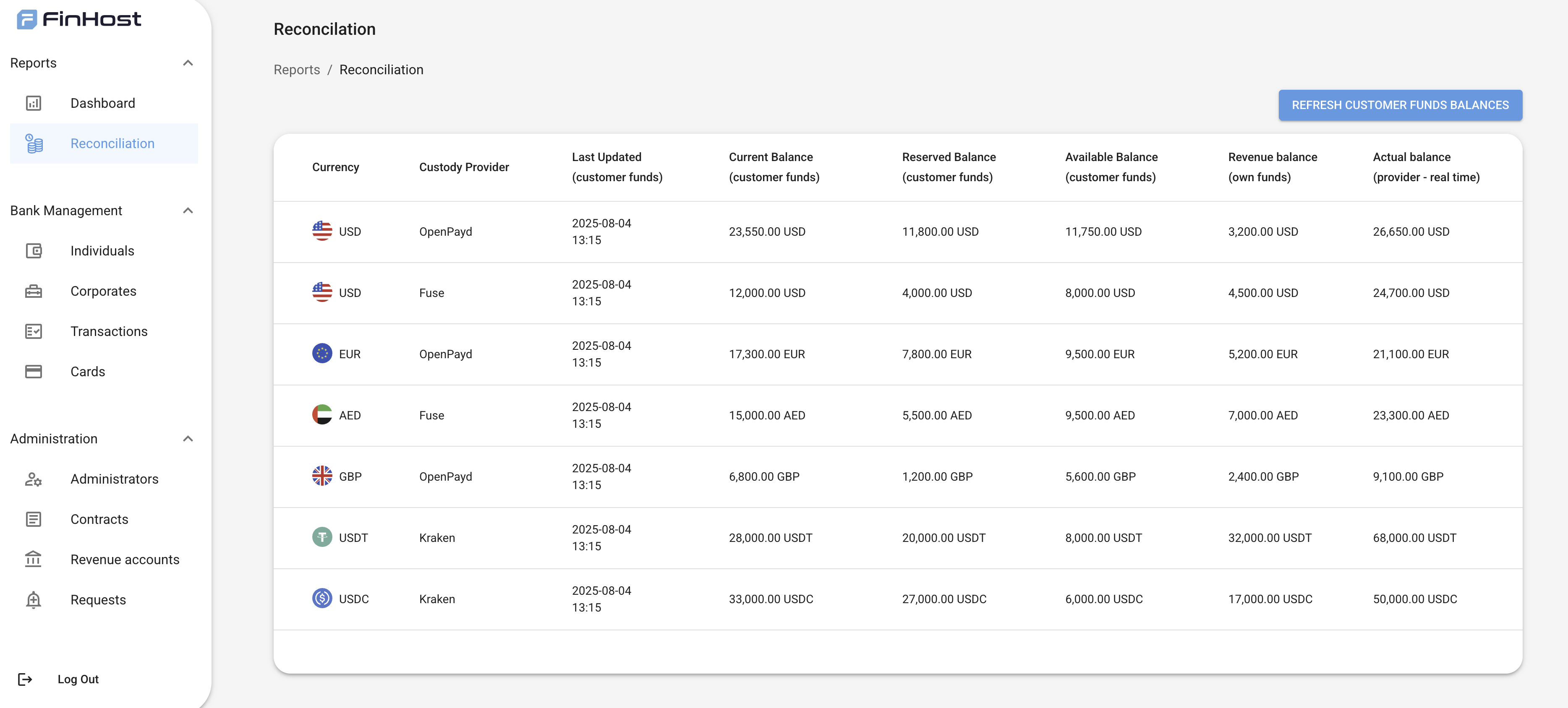
Use the Reconciliation Report in the Backoffice to:- Compare total client balances (from the Core Banking Ledger) with available funds in Fiat and Kraken accounts.
- Quickly detect shortages and top up liquidity where needed.
4. Gas Station (Crypto Network Fees)
Fireblocks requires a Gas Station wallet to cover blockchain transaction fees (“network fees”) for outgoing crypto transfers.If the Gas Station runs out of funds, crypto payments will fail until refilled. Check fireblocks recommendations https://support.fireblocks.io/hc/en-us/articles/9378061609884-Default-Gas-Station-values
🔋 How to Manage
- Open Fireblocks Console → Settings → Gas Station.
- Review available balances for each supported network (BTC, ETH, USDT).
- Refill balances as needed according to Fireblocks recommendations:
- BTC: ~0.01 BTC
- ETH: ~0.1 ETH
- USDT (ERC-20): enough for ≈ 10 outgoing transactions