> ## Documentation Index
> Fetch the complete documentation index at: https://docs.finhost.io/llms.txt
> Use this file to discover all available pages before exploring further.
# Introduction
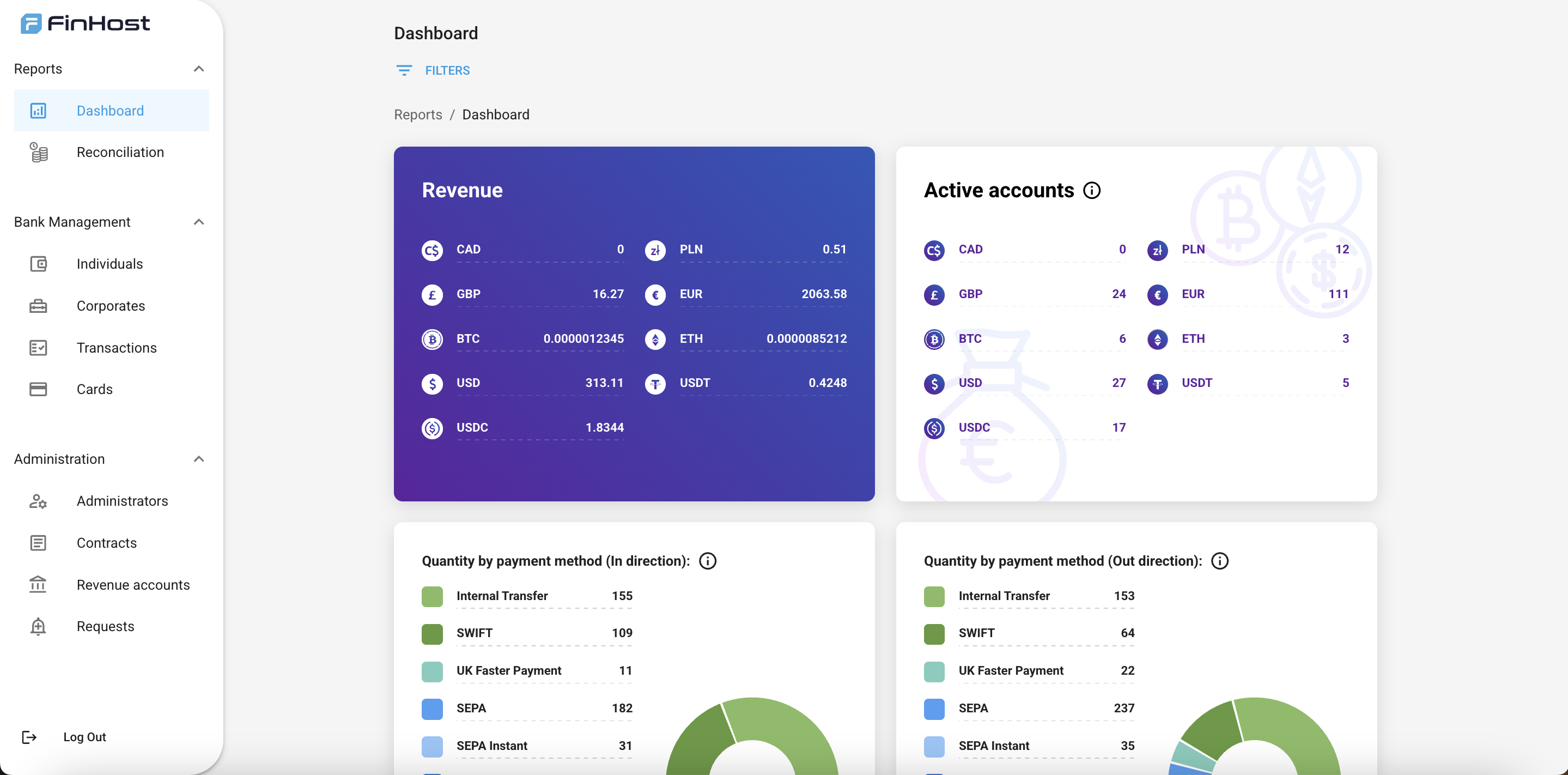 This page focuses on the **Backoffice** (admin panel) used by your team (ops, compliance, support, finance). If you’re integrating the API, see the **API Integration — Introduction**.
## What is the Backoffice?
A secure, web-based admin tool for managing **users, accounts, cards, transactions, reporting, and compliance workflows** in your white‑label banking stack.
Dashboards, onboarding, reconciliation.
Individuals, corporates, transactions, cards.
Admins, contracts, revenue accounts, requests.
***
## Access & invitations
Backoffice **sign‑up is restricted**. Admin users are **created by the Finhost team** or by existing admins. There is **no public self‑registration** form.
**To request initial access**, provide to Finhost:
* First name
* Last name
* Email (work)
You’ll receive an **invitation email** with your **username** and a **temporary password**. After first sign‑in you’ll be prompted to change it.
Once the first admin is created, that admin can **invite additional admins** directly from **Administration → Administrators** (permissions apply).
***
## Sign in (with 2FA)
1. Open your Backoffice URL.
2. Enter your **email** and **temporary password** from the invitation.
3. Set up **two‑factor authentication (2FA)** with **Google Authenticator**.
4. Use the **one‑time code** to complete login.
If you change devices, ask another admin to temporarily disable 2FA for your user, then set it up again on the new device.
***
## Navigation primer
Use the left navigation to reach the main areas:
* **Reports** → **Dashboard**, **Onboarding**, **Reconciliation**
* **Bank management** → **Individuals**, **Corporates**, **Transactions**, **Cards**
* **Administration** → **Administrators**, **Contracts**, **Revenue accounts**, **Requests**
Use the **search** (look for the search bar or **⌘K**) to quickly jump to entities by name, email, or ID.
***
## Role‑based quick starts
Review KYC/KYB states, run manual checks, monitor high‑risk transactions, and approve/decline **Requests**.
Create accounts, view balances & bank details, troubleshoot failed payouts, and reconcile **Reports** daily.
Locate users, reset access (with policy), view recent transactions, and raise internal **Requests** to compliance.
Track KPI dashboards, export onboarding & reconciliation datasets, and audit **Revenue accounts**.
***
## Daily checklist
* [ ] Review **Dashboard** KPIs & alerts
* [ ] Process pending **Requests** (limits, accounts, compliance flags)
* [ ] Clear today’s **Onboarding** queue
* [ ] Reconcile **incoming/outgoing** payments
* [ ] Sample check of **high‑value transactions**
* [ ] Audit recent **admin actions** (spot check)
***
This page focuses on the **Backoffice** (admin panel) used by your team (ops, compliance, support, finance). If you’re integrating the API, see the **API Integration — Introduction**.
## What is the Backoffice?
A secure, web-based admin tool for managing **users, accounts, cards, transactions, reporting, and compliance workflows** in your white‑label banking stack.
Dashboards, onboarding, reconciliation.
Individuals, corporates, transactions, cards.
Admins, contracts, revenue accounts, requests.
***
## Access & invitations
Backoffice **sign‑up is restricted**. Admin users are **created by the Finhost team** or by existing admins. There is **no public self‑registration** form.
**To request initial access**, provide to Finhost:
* First name
* Last name
* Email (work)
You’ll receive an **invitation email** with your **username** and a **temporary password**. After first sign‑in you’ll be prompted to change it.
Once the first admin is created, that admin can **invite additional admins** directly from **Administration → Administrators** (permissions apply).
***
## Sign in (with 2FA)
1. Open your Backoffice URL.
2. Enter your **email** and **temporary password** from the invitation.
3. Set up **two‑factor authentication (2FA)** with **Google Authenticator**.
4. Use the **one‑time code** to complete login.
If you change devices, ask another admin to temporarily disable 2FA for your user, then set it up again on the new device.
***
## Navigation primer
Use the left navigation to reach the main areas:
* **Reports** → **Dashboard**, **Onboarding**, **Reconciliation**
* **Bank management** → **Individuals**, **Corporates**, **Transactions**, **Cards**
* **Administration** → **Administrators**, **Contracts**, **Revenue accounts**, **Requests**
Use the **search** (look for the search bar or **⌘K**) to quickly jump to entities by name, email, or ID.
***
## Role‑based quick starts
Review KYC/KYB states, run manual checks, monitor high‑risk transactions, and approve/decline **Requests**.
Create accounts, view balances & bank details, troubleshoot failed payouts, and reconcile **Reports** daily.
Locate users, reset access (with policy), view recent transactions, and raise internal **Requests** to compliance.
Track KPI dashboards, export onboarding & reconciliation datasets, and audit **Revenue accounts**.
***
## Daily checklist
* [ ] Review **Dashboard** KPIs & alerts
* [ ] Process pending **Requests** (limits, accounts, compliance flags)
* [ ] Clear today’s **Onboarding** queue
* [ ] Reconcile **incoming/outgoing** payments
* [ ] Sample check of **high‑value transactions**
* [ ] Audit recent **admin actions** (spot check)
***